Module federation
Module federation
Module federation allows a Webpacked based application to dynamically load code from another application.
Basic architecture can be found here:
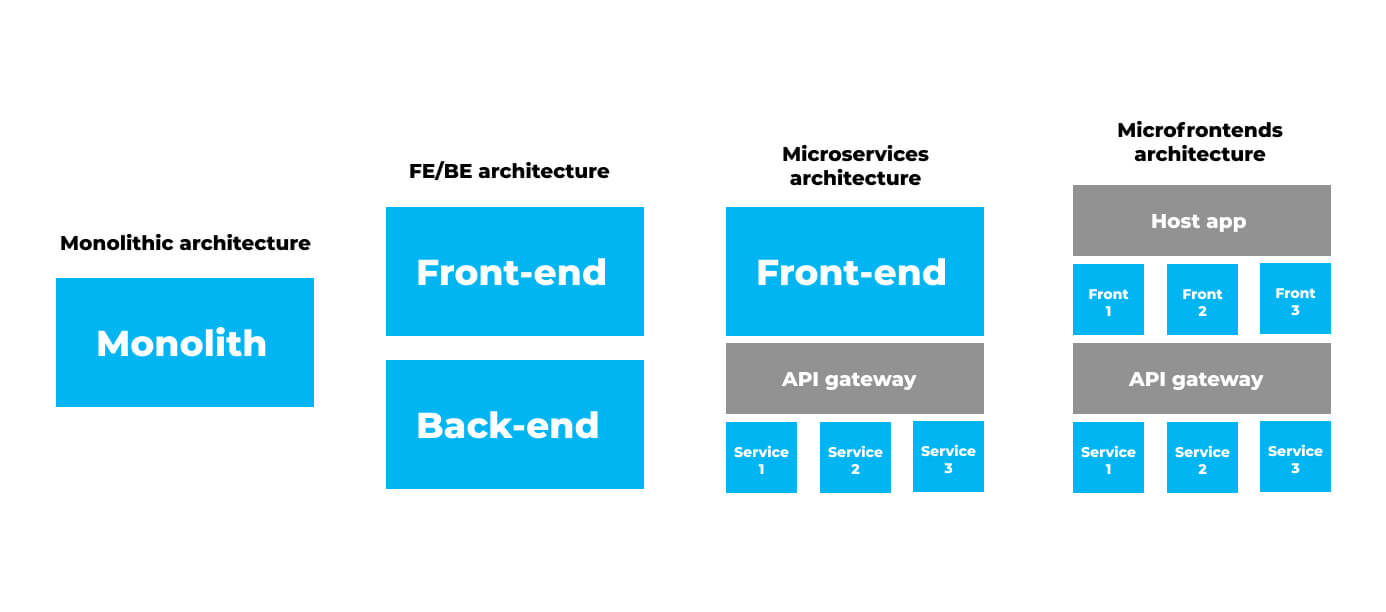
Terminology
Basic building blocks:
- A host - a Webpack application that can consume remotes
- A remote - another Webpack application, where part of it is being consumed by a “host”
- Shared dependencies - Dependencies that are shared among host and remotes, so only one instance is loaded
By direction:
- Bidirectional-hosts - when a bundle or Webpack build can work as a host or as a remote. Either consuming other applications or being consumed by others — at runtime
- Omnidirectional-hosts - hosts themselves don’t know if they are host or remote on startup. This enables webpack to change out the hosts own vendors with ones based on semver rules. Allowing multiple versions when needed.
Pros and cons
Pros
- split monolith front end into smaller apps and libraries
- it can be technology independent meaning that any application using webpack 5 can federate parts of app in host application, so it should be possible to load different version of Angular or even load other JS technologies as react, vue etc. into angular host
Cons
- communication between host and remote could be tricky
- align shared dependencies can be hell
Prerequisites
There are some prerequisites to use module federation:
- Angular 14 - all examples are provided in Angular 14, as there where a lots of breaking changes in module federation
- Webpack 5 - should be part of Angular 14
NPM dependencies
- @angular-architects/module-federation - v14.x - useful helpers
- ngx-build-plus - v14.x - custom webpack builder
Remote setup
To enable module federation in application follow these steps.
install npm dependencies
Make sure to install the dependencies in NPM dependencies section.
create bootstrap.ts file
Create bootstrap.ts file next to main.ts and copy content of main.ts into bootstrap file. It could look like:
import { enableProdMode } from '@angular/core';
import { platformBrowserDynamic } from '@angular/platform-browser-dynamic';
import { AppModule } from './app/app.module';
import { environment } from './environments/environment';
if (environment.production) {
  enableProdMode();
}
platformBrowserDynamic()
  .bootstrapModule(AppModule)
  .catch((err) => console.error(err));
change main.ts
Change main.ts file :
import('./bootstrap').catch((err) => console.error(err));
It is really strange, but if you dont do this, it will not work.
create webpack.config.js file
Create webpack.config.js file in to root of project, if you are using multi project solution than create it in root of project.
/* eslint-disable @typescript-eslint/no-var-requires */
const {
  share,
  withModuleFederationPlugin,
} = require('@angular-architects/module-federation/webpack');
module.exports = withModuleFederationPlugin({
  name: 'idm', // name of app
  exposes: {
    './Licencing': './src/app/modules/licensing/licensing.module.ts', // List of modules to expose
    './Role': './src/app/modules/roles/roles.module.ts',
  },
});
Add shared dependencies to webpack.config.js
Very important part is to add correct dependencies that host app will need to instantiate.
Currently add these dependencies after exposes (you need to add the share to constant on top of the page), you will need to change the shares when needed:
shared: share({
    '@angular/core': {
      singleton: true,
      strictVersion: true,
      requiredVersion: '>=14.1.1',
    },
    '@angular/common': {
      singleton: true,
      strictVersion: true,
      requiredVersion: '>=14.1.1',
    },
    '@angular/router': {
      singleton: true,
      strictVersion: true,
      requiredVersion: '>=14.1.1',
    },
    '@angular/material': {
      singleton: true,
      strictVersion: true,
      requiredVersion: '>=14.1.1',
    },
    '@angular/forms': {
      singleton: true,
      strictVersion: true,
      requiredVersion: '>=14.1.1',
    },
    'ngx-toastr': {
      singleton: true,
      strictVersion: true,
      requiredVersion: '>=15.0.0',
    },
    '@asol-platform/authentication': {
      singleton: true,
      strictVersion: true,
      requiredVersion: '>=14.0.1',
    },
    '@asol-platform/store': {
      singleton: true,
      strictVersion: true,
      requiredVersion: '>=14.0.1',
    },
    '@asol-platform/services': {
      singleton: true,
      strictVersion: true,
      requiredVersion: '>=14.0.1',
    },
    '@asol-platform/guidance': {
      singleton: true,
      strictVersion: true,
      requiredVersion: '>=14.0.1',
    },
    '@asol-platform/core': {
      singleton: true,
      strictVersion: true,
      requiredVersion: '>=14.0.1',
    },
    '@asol-platform/controls': {
      singleton: true,
      strictVersion: true,
      requiredVersion: '>=14.0.1',
    },
    '@asol-platform/common': {
      singleton: true,
      strictVersion: true,
      requiredVersion: '>=14.0.1',
    },
  }),
You can read about shared dependencies versioning here
change angular.json file
Now you have webpack.config.js file, but you need to tell Angular to use it. Open angular.json file and locate the app definition and change:
- find architect - build - builder and change
@angular-devkit/build-angular:browsertongx-build-plus:browser - add this line
"extraWebpackConfig": "webpack.config.js",to options of build - find architect - serve - builder and change
@angular-devkit/build-angular:dev-servertongx-build-plus:dev-server - add this line
"extraWebpackConfig": "webpack.config.js",to options of serve - find architect - extract-i18n - builder and change
@angular-devkit/build-angular:extract-i18ntongx-build-plus:xtract-i18n
build and serve
Last step is to build the app and test, everything should work as before. To test if module federation is working insert into URL this link: http(s)://localhost:{port}/remoteEntry.js, where port is your serve port.
Recommendation: your URL is important as host app needs to know where to look for the modules, so use single port for the app. You can add the port to the package.json and run a script or always include --port {port} to the ng serve command
Module routing
When you create a module, which is going to be shared to another application, it will be lazy loaded. There may be problem with routing issues. Each module routing page shouldn't have component on empty path. In this case, it should be redirected.
import { NgModule } from '@angular/core';
import { RouterModule, Routes } from '@angular/router';
import { AsolAuthGuard } from '@asol-platform/authentication';
import { AsolExamplePageComponent } from './PATH_TO_COMPONENT';

const routes: Routes = [
  {
    path: '',
    pathMatch: 'full',
    redirectTo: 'list',
  },
  {
    path: 'list',
    component: AsolExamplePageComponent,
    canActivate: [AsolAuthGuard],
  },
];

@NgModule({
  imports: [RouterModule.forChild(routes)],
  exports: [RouterModule],
})
export class ExampleRoutingModule {}
Host setup
To setup host application you will follow similar steps as in remote setup. This tutorial will change according to new development in module federation in AVA.
install npm dependencies
Same as for remote setup
create bootstrap.ts file
Same as for remote setup
create bootstrap.ts file
Same as for remote setup
change main.ts
Same as for remote setup
add shared dependencies to webpack.config.js
Same as for remote setup
create webpack.config.js file
Same as for remote setup
change angular.json file
Same as for remote setup
change side-menu.definition.json
Add corresponding navigation from source app.
Example for Licencing from IDM:
{
      "path": "app/licensing",
      "name": "Licensing",
      "description": "",
      "iconUrl": "https://avaplace.com/api/asol/cnt/api/v1/PublicFiles/Path/ASOLEU-IDM-AP-%2Flicencing.svg",
      "hasSeparator": false,
      "children": [
        {
          "path": "app/licensing/licensing-overview",
          "name": "Licensing overview",
          "description": "",
          "iconUrl": "",
          "hasSeparator": false,
          "children": []
        }
      ]
    }
Note: When application is deployed, the side menu gets uploaded to IDM. To debug you can change sideMenuDebug to true.
change app-routing.module.ts
Last step is to change main app routing file. It is similar to lazy loading.
Example for Licencing from IDM:
const routes: Routes = [
  {
    path: 'licensing',
    canActivate: [AsolAuthGuard], // Do not forget to add this activate
    loadChildren: () => {
      return loadRemoteModule({
        type: 'module', // manifest file usage
        remoteEntry: `${environment.idmAppUrl}/remoteEntry.js`, // to dynamically change URL
        exposedModule: './Licencing', // exposed module name
      }).then((m) => m.LicensingModule);
    },
  },
];
build and serve
Last step is to build the app and test. Host application port is not important as it consumes remotes, but in case that host app is also exposing modules for other hosts, than we recommend creating fixed ports in package.json.
Data communication
Important part is communication between host and remote module to exchange information or provide new. It can be achieved in two ways:
- pass data when module loads
- implement in shared library
Pass data when module loads
Sometimes you need to pass some data to module, to change behaviour appCode, setting for page changes etc. To achieve this you can use data in angular routing.
Example to pass canAddRoot from host to remote:
Host configuration
Open app-routing.module.ts and change:
const routes: Routes = [
  {
    path: 'licensing',
    data: {
      canAddRoot: false // add, you can add more properties
    },
    canActivate: [AsolAuthGuard], // Do not forget to add this activate
    loadChildren: () => {
      return loadRemoteModule({
        type: 'manifest',
        remoteName: 'idm',
        exposedModule: './Licencing',
      }).then((m) => m.LicensingModule);
    },
  },
];
Remote configuration
Open component where you want to read properties and add:
  constructor(
    private route: ActivatedRoute // add
  ) {
    // ... omitted
  }

 /**
  * Read configuration
  */
 private parseAddSnapshotData() {
    const canAddRoot = this.route.parent?.snapshot.data['canAddRoot'];
    if (canAddRoot === undefined || canAddRoot === null) {
      this.canAddRoot = false;
      return;
    }

    this.canAddRoot = canAddRoot;
  }
Please note the this.route.parent part where we are reading parents snapshot data as the component might be sub child.
Implement in shared library
In some cases you need to have same data in host and also remote like authentication, profile settings, language, etc. In case of authentication, profile, translations, languages etc. ASOL provides auth, translation, services etc. libraries that are already shared in webpack.config.js. You can still create new shared library, but it has to be added to both host and remote app. All shared libraries are singletons, so same instances are shared among apps.
Future improvement
This is list of future improvements of module federation in ASOL:
- create full host app
- generate side menu from IDM API
- generate routing based on configuration
- load manifest file from API
Troubleshooting
This section describes issues and solutions.
App constantly reloads page
If app constantly reloads page you need to add folowing code to angular.json in serve - options section:
"options": {
  "browserTarget": "IdmApp:build",
  "publicHost": "http://localhost:4200", // add this, change to correct port number
  "port": 4200, // add this, change to correct port number
  "extraWebpackConfig": "webpack.config.js"
},
Error: Shared module is not available for eager consumption
When you get this error Shared module is not available for eager consumption you are missing some shared depenedency or you have version mismatch. Refer to the error log and find dependency that is causing the issue and fix the version or add the dependency to webpack.config.js.
Uncaught SyntaxError: Cannot use 'import.meta' outside a module
This is a known issue outside of AVASpace development. We will monitor the resolution to this issue and update when it will be fixed. It has no impact to the application.
Application loading hangs or the page is partially loaded
If your application hangs in middle of the loading and you cannot see any error in console or any issue in Network, that the issue could be missing canActivate: [AsolAuthGuard], in routing configuration. The issue is that your token is expired and no one called the refresh token, it is done in AsolAuthGuard which check for token validity and redirects user to login if necessary. Also lazy loaded modules should have canActivate.
Localhost development and CORS issue
There is issue when module federation is deployed and accessed from localhost. The remoteEntry.js is hosted inside the deployed app and localhost throws CORS issue, but when the app is deployed it is working correctly.
!!! This issue was not solved yet !!!
Missmatch of versions - locahost development
In localhost development you will need to use dev version of any library. If you just install the library and run the application it will thrown an exception:
Unsatisfied version 14.0.4-dev.3 from IdmApp of shared singleton module @asol-platform/authentication (required >=14.0.4).
So this tell us that in IdmApp there is a singleton for @asol-platform/authentication that version does not match.
In this case you have multiple options to resolve the issue:
- change the singleton flag to false on library that you have installed - but keep in mind that you HAVE to change the singleton flag back to true, (find the @asol-platform/authentication in webpack.config.js and change the singleton to false)
- change the version to current dev version installed - but keep in mind that you HAVE to change the version to prod, (find the @asol-platform/authentication in webpack.config.js and change the version to 14.0.4-dev.3)
- the strictVersion to false - but keep in mind that you HAVE to change the strictVersion flag back to true, (find the @asol-platform/authentication in webpack.config.js and change the strictVersion to false)